Viewers decide whether to click your video in about a second, and most of them are on a phone. Your thumbnail, profile picture and channel name are all they see. Getting the sizes right is the easy part; making those images readable and recognisable is what actually wins clicks.
This guide covers the current YouTube image sizes, how to make thumbnails that work on mobile, and how to build a small, consistent branding kit for your channel.
A note on accuracy: the sizes below were checked against YouTube's help pages in November 2026. YouTube changes its limits from time to time (the thumbnail file size limit recently went from 2 MB to 50 MB), so check the official custom thumbnail guidelines if something doesn't upload.
Quick answer: YouTube thumbnail size
| Setting | Value |
|---|---|
| Size most creators use | 1280 × 720 px |
| YouTube's recommended maximum | 3840 × 2160 px |
| Minimum width | 640 px |
| Aspect ratio | 16:9 |
| File formats | JPG or PNG |
| Maximum file size | 50 MB (older guides say 2 MB) |
1280 × 720 px is the safe default. It's sharp on phones and laptops, small to upload, and easy to design at. If you design at a larger size such as 1920 × 1080 or 3840 × 2160, keep the 16:9 shape and your thumbnail will still look right everywhere.
Shorts are different: they use a vertical 9:16 thumbnail. This guide is about regular videos.
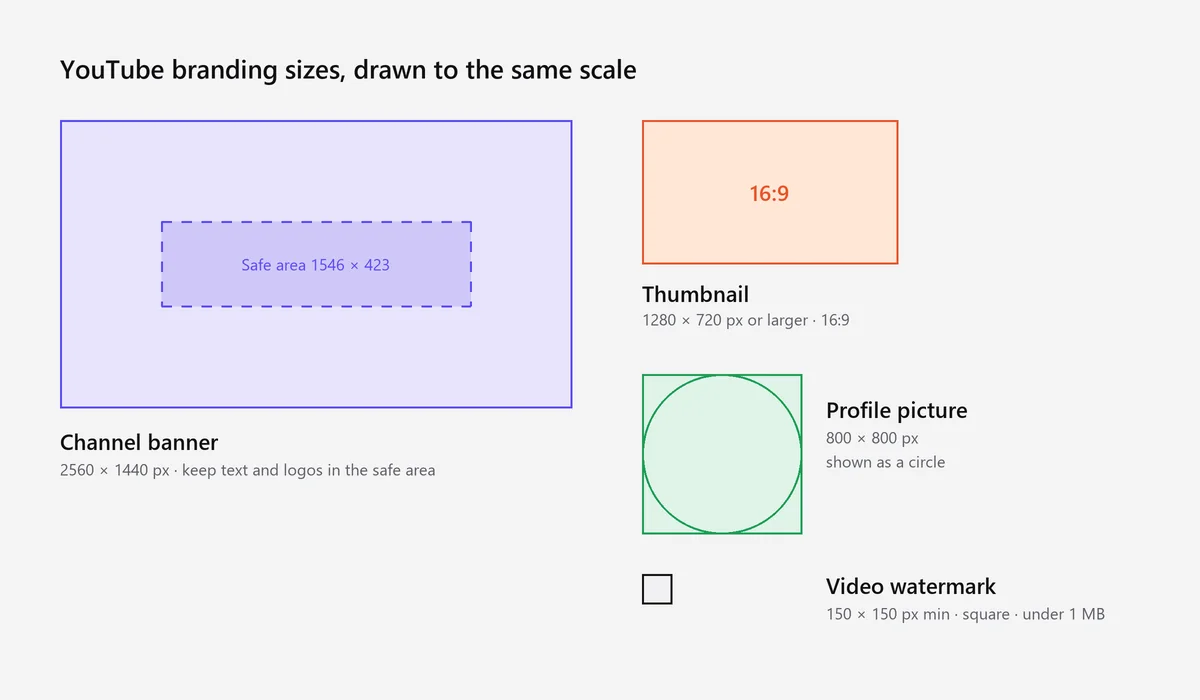
Every YouTube branding size in one place
| Asset | Recommended size | Notes |
|---|---|---|
| Profile picture | 800 × 800 px | Square upload, shown as a circle |
| Channel banner | 2560 × 1440 px | Keep logos and text inside the 1546 × 423 px safe area |
| Thumbnail | 1280 × 720 px or larger | 16:9, JPG or PNG |
| Video watermark | 150 × 150 px minimum | Square, under 1 MB |
Channel banner and its safe area
YouTube shows a different part of your banner on TVs, computers and phones. Only the centre 1546 × 423 px shows on every device, so your logo, channel name and any text must sit inside it. The rest is background. For the full breakdown, including the minimum upload size and file limits, see our YouTube banner size guide.
Video watermark
The watermark is a small image in the corner of your videos. YouTube asks for a square image of at least 150 × 150 px and under 1 MB, and lets you show it for the last 15 seconds, from a custom start time or for the whole video. It's shown small and over moving video, so use a simple white or single-colour version of your logo, not the full colour version with text. Watermarks aren't available on videos set as made for kids.
End screens
End screens are the clickable elements in the last 5 to 20 seconds of a video: other videos, a playlist, a subscribe button or a link. A video has to be at least 25 seconds long to have one, and you can add up to four elements. You build them in YouTube Studio from templates, so there's no single image size to design. If you design a background for the end of your videos, use your normal video size (for example 1920 × 1080) and leave clear space where the elements will sit.
Make thumbnails readable on mobile
Most views start on a phone, where your thumbnail is about the size of a postage stamp. Design for that size first.
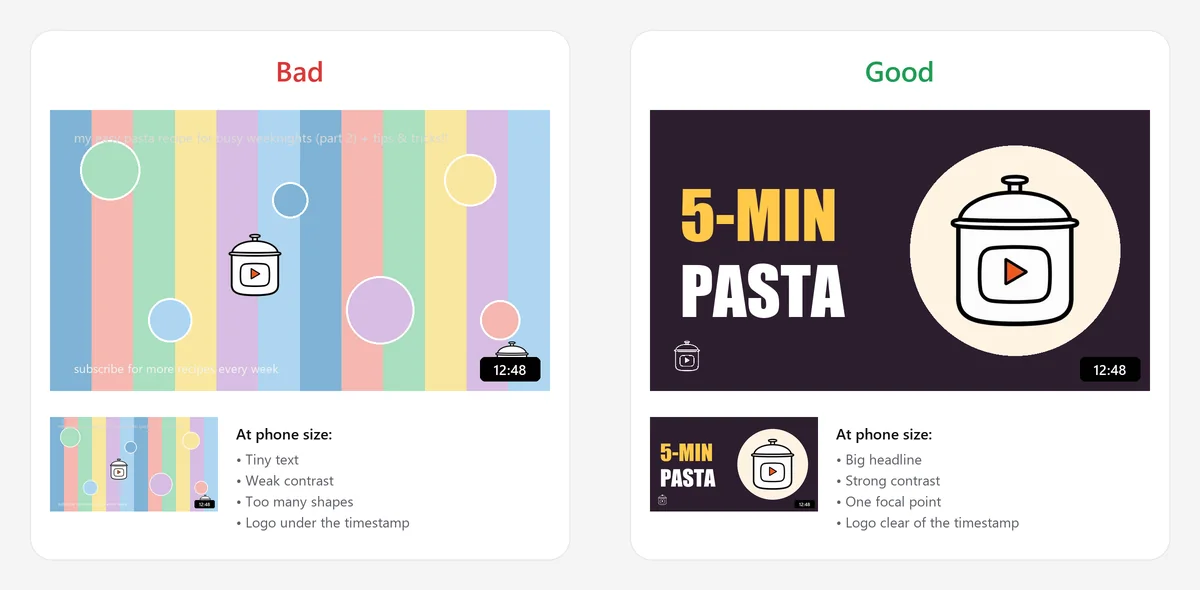
- Use large, readable text. Three to five words at most. If you can't read it at phone size, it's too small or too long.
- Keep strong contrast. Light text on a dark background, or the reverse. Add a dark outline or a solid shape behind text that sits over a busy photo.
- Give it one clear focal point. One face, one product or one object, big enough to recognise instantly.
- Avoid overcrowding. Every extra arrow, emoji and circle makes the main message harder to see.
- Use faces or products where they fit. A clear facial expression or a close-up of the thing the video is about tells viewers what to expect.
- Don't repeat the title. The title is shown right next to the thumbnail, so use the thumbnail to add something: a result, a number, a reaction.
Keep your logo, banner and thumbnails consistent
A consistent channel is easier to recognise in a busy feed. Viewers start to spot your videos before they read your name.
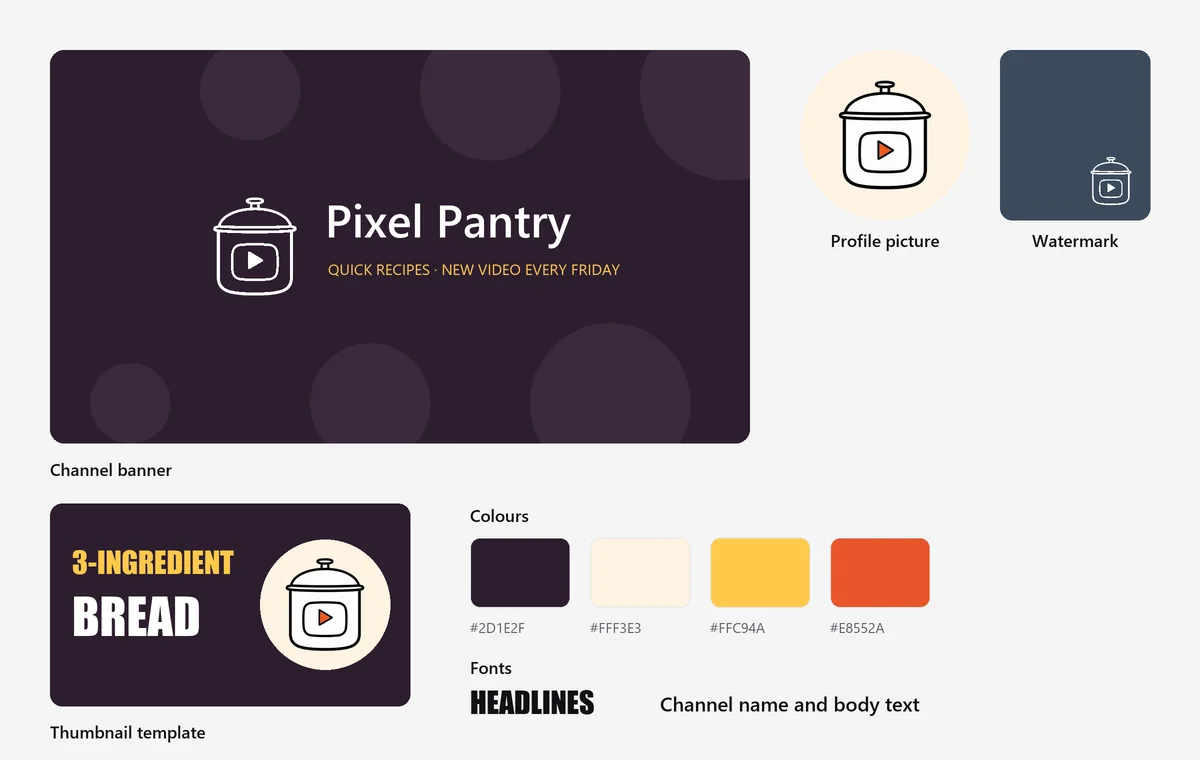
- One main colour palette. Pick one main colour, one contrast colour and one or two accents. Use them in your profile picture, banner and every thumbnail.
- Consistent typography. One bold font for thumbnail headlines and one clean font for your channel name and other text. Two fonts are enough.
- A repeated visual style. Same layout, same type of background, same position for faces or products. A thumbnail template makes this easy.
- A matching profile picture and banner. Use the same symbol in both: the icon alone in the profile picture, and the icon with your channel name in the banner.
Not sure about your logo yet? Our YouTube logo ideas cover 30 concepts across 10 niches.
Where to place your logo on YouTube thumbnails
You don't need your logo on every thumbnail. Your profile picture already appears next to most videos. But if you do add it, put it where YouTube won't cover it.
- Avoid the bottom-right corner. YouTube shows the video length there, and it covers anything underneath.
- Be careful with the top-right corner. On desktop, "Watch later" and "Add to queue" buttons appear there when someone hovers over the thumbnail.
- Bottom-left or top-left are safest. Keep the logo small, so it doesn't compete with your headline or main image.
- Use the simple version. A small white or single-colour icon reads better than a full-colour logo with text.
In the comparison above, the bad thumbnail puts the logo under the timestamp, where it's hidden. The good one puts a small white icon in the bottom-left corner.
YouTube channel branding checklist
Use this list when you set up a new channel or refresh an old one:
- Profile picture: 800 × 800 px, one bold symbol or initial, centred for the circle crop.
- Channel banner: 2560 × 1440 px, logo and channel name inside the 1546 × 423 px safe area.
- Thumbnail template: a 1280 × 720 px layout with fixed spots for the headline, the main image and (optionally) your logo.
- Video watermark: a square, simple white or single-colour version of your logo, at least 150 × 150 px and under 1 MB.
- Brand colours: one main colour, one contrast colour and one or two accents, written down as hex codes.
- Font selection: one headline font and one text font.
- Consistent visual identity: use the same logo, colours and fonts on YouTube, your other social profiles and any merch.
Need sizes for other platforms too? The logo size guide covers Instagram, TikTok, Facebook, websites and print.
Create a matching logo and channel branding kit
The hardest part of channel branding is starting with a logo that works small. ShotKart's free YouTube logo maker creates logo ideas from your channel name and a short description, and then gives you:
- an 800 × 800 px profile picture, centred so the circle crop never cuts it,
- a 2560 × 1440 px banner with your logo placed inside the safe area,
- white and black versions of your logo for watermarks and end screens.
Your channel name is set as real text in a real font, so it's always spelled right. ShotKart doesn't make thumbnails, but once you have your logo and colours, your thumbnail template becomes much easier to design in any editor.
Start with the logo. Get a matching profile picture and banner for your channel in a few minutes, free.
Make my YouTube logo freeFinal thoughts
Use 1280 × 720 px (or larger, at 16:9) for thumbnails, 800 × 800 px for your profile picture, 2560 × 1440 px for your banner and a simple 150 × 150 px square for your watermark. Then make them look like they belong together: one logo, one palette, two fonts and a thumbnail template you reuse for every video. For a step-by-step guide to the logo itself, read how to make a YouTube logo.