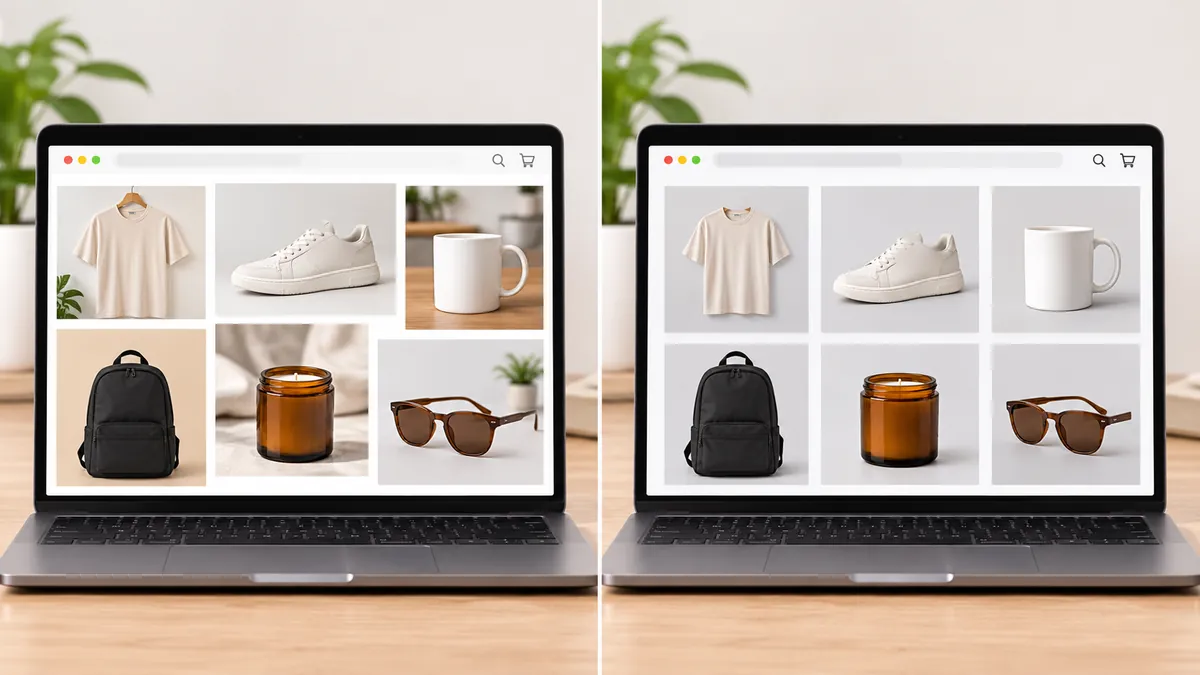
Good Shopify product photos help shoppers understand what they are buying before they add it to their cart. You do not need a studio to make a useful set. A phone, soft daylight and a repeatable setup can produce clear images for a new store or a growing catalogue.
This guide shows you how to take product photos for Shopify at home, what images to capture for each item, and how to keep your product pages looking consistent. For the platform's image dimensions and file limits, see our separate Shopify product image size guide.
Set up a simple product photo area
Choose a spot near a large window where daylight reaches the product indirectly. Direct sun can create hard shadows and shiny hotspots, so soften it with a thin white curtain or move the product a little farther from the window.
Use a plain piece of white paper, foam board or a neutral cloth as your background. For small items, curve a larger sheet from the wall onto the table to make a simple seamless backdrop. Clear away anything that is not part of the product. A white card placed opposite the window can bounce light back into dark areas.
Keep your setup stable. Mark where the product and phone go, or take a reference photo of the arrangement. Reusing the same position makes it much easier to photograph the rest of a collection in a matching style.
Prepare the product before you shoot
Small distractions look large in a close product photo. Before taking pictures:
- Wipe away dust, fingerprints and lint.
- Steam or smooth clothing and fabric items.
- Arrange labels, straps, lids and packaging neatly.
- Check reflective items for visible room clutter.
- Make sure the product's real colour is represented as closely as possible.
If you sell several colours or sizes, photograph each variation in similar light and from the same angle. Do not rely on editing to make one version look like another; shoppers should see the item they will actually receive.
Phone camera settings that help
Clean the phone lens and use the rear camera. Tap the product on screen to focus, then lower the exposure slightly if a white background is losing detail. Hold the phone level with the product for a natural shape, and use a small stack of books or a tripod to prevent blur.
Avoid digital zoom, portrait mode blur and filters that shift the item's colour. Move the phone closer instead, while leaving enough room around the product for a tidy crop. If your phone offers a grid, turn it on to keep vertical edges straight and the product centred.
The five-photo Shopify product checklist
Each photo should answer a different question a shopper may have. A useful starting set is:
- Main image: Show the whole product clearly against a clean background.
- Alternate angle: Show its side, back or another view that helps explain the shape.
- Close-up: Capture texture, stitching, ingredients, controls or other important details.
- Scale, fit or use: Show the item being worn, held or used, or include a familiar object for scale.
- Lifestyle image: Place it in a setting that helps a shopper picture owning or using it.
Adapt the list to what you sell. A jacket needs a clear view of its fit and closures; a candle may need a label close-up and a photograph in a room. Useful coverage matters more than hitting an arbitrary image count.
Make your images look like one store
Consistency makes a catalogue easier to browse. Decide on a background, light direction, camera height and crop, then repeat those choices for similar products. Keep the product a similar size in the frame and leave a little breathing room around it.
Preview your product cards on both desktop and mobile. A photo that looks balanced full-size can crop awkwardly in a collection grid. Shopify themes vary, so check the actual storefront instead of assuming every theme uses the same image shape. Our Shopify image size guide explains pixel dimensions and formats.
Edit lightly and keep the product accurate
Crop out empty space, straighten the frame and adjust brightness only as much as needed. Compare the edited photo with the real item in neutral light. Avoid heavy colour changes, added features or retouching that could make the product look different when it arrives.
AI can help create additional studio or lifestyle scenes from a source image. Treat those as new images to review: check colour, shape, labels, prints and hardware carefully. Keep a straightforward, accurate view of the actual item in the set, and use generated scenes only when they represent it honestly. Learn more in our AI product photography guide.
Need matching product images for your store? Start with a clear source photo and create studio, lifestyle or on-model options for your listing.
Create product photosCommon product photography problems to fix
- A dark or yellow cast: Move closer to a window and turn off mixed room lights.
- Hard shadows: Diffuse the window light with a curtain and add a white bounce card.
- A tilted product: Level the phone and use the camera grid as a guide.
- A cluttered frame: Remove props that do not explain the product or its use.
- Different-looking product cards: Repeat the same background, framing and crop across the collection.
- Soft or blurry detail: Stabilise the phone, tap to focus and avoid digital zoom.
A repeatable workflow for every new item
Prepare the product, set it in your marked photo area and capture the main view first. Take the angles and details that answer likely customer questions, then make one contextual image if it adds useful information. Review the set at thumbnail size and on the product page. Replace any frame that is unclear, inconsistent or inaccurate before publishing.
Strong Shopify product photos are clear and dependable. A modest setup can get you there when you control the light, show the details that matter and repeat the same process for every product.